
Audio transcription
Bring a saved recording into Whynote and get a transcript. Choose your device to see how to import the file and review the text.
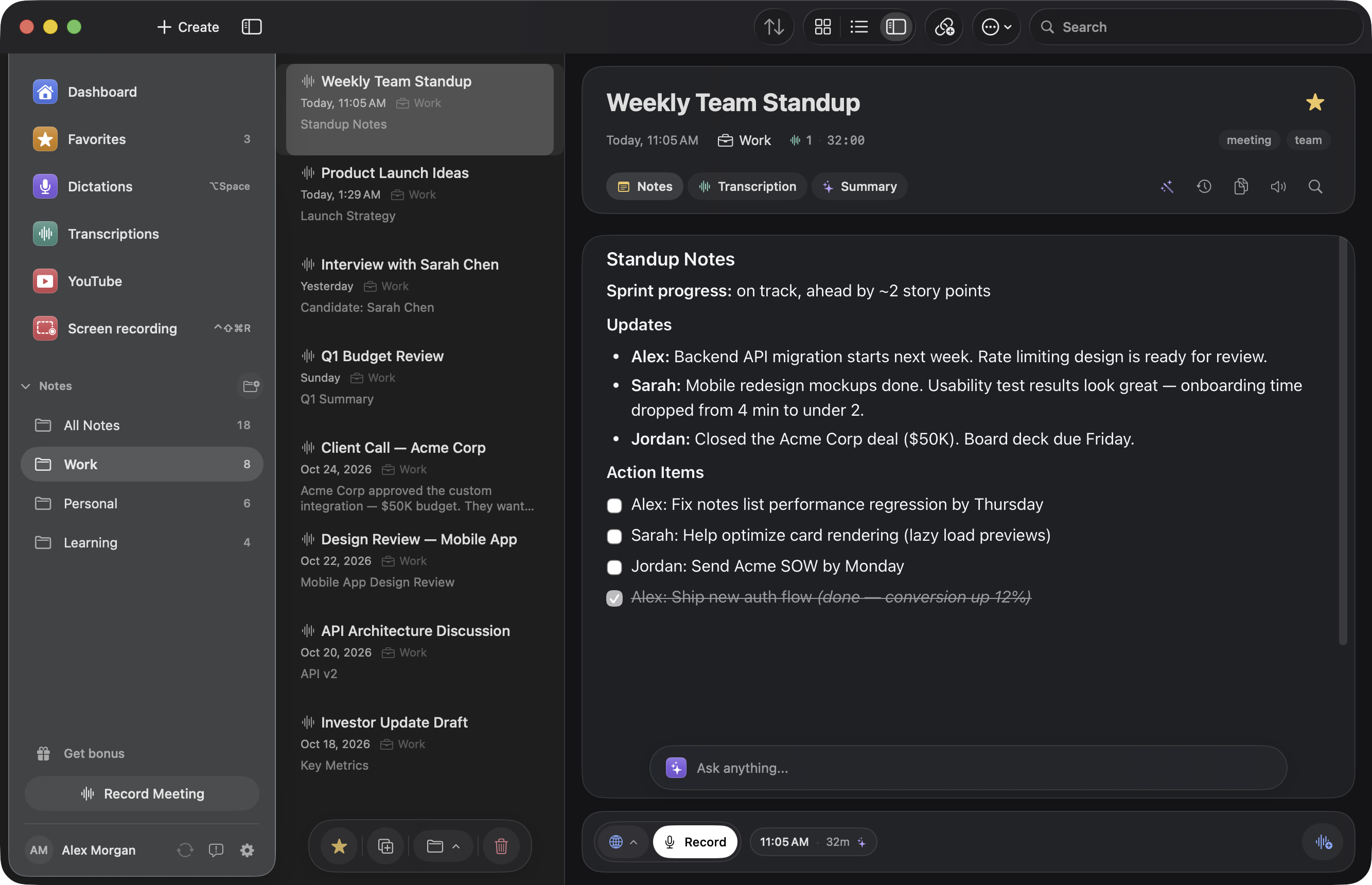
Whynote keeps your conversations and helps turn them into text you can work with. Use the Mac app to dictate into text fields or record a screen clip when something is easier to show.
macOS 14 or later · Apple silicon
Also on iPhone ↗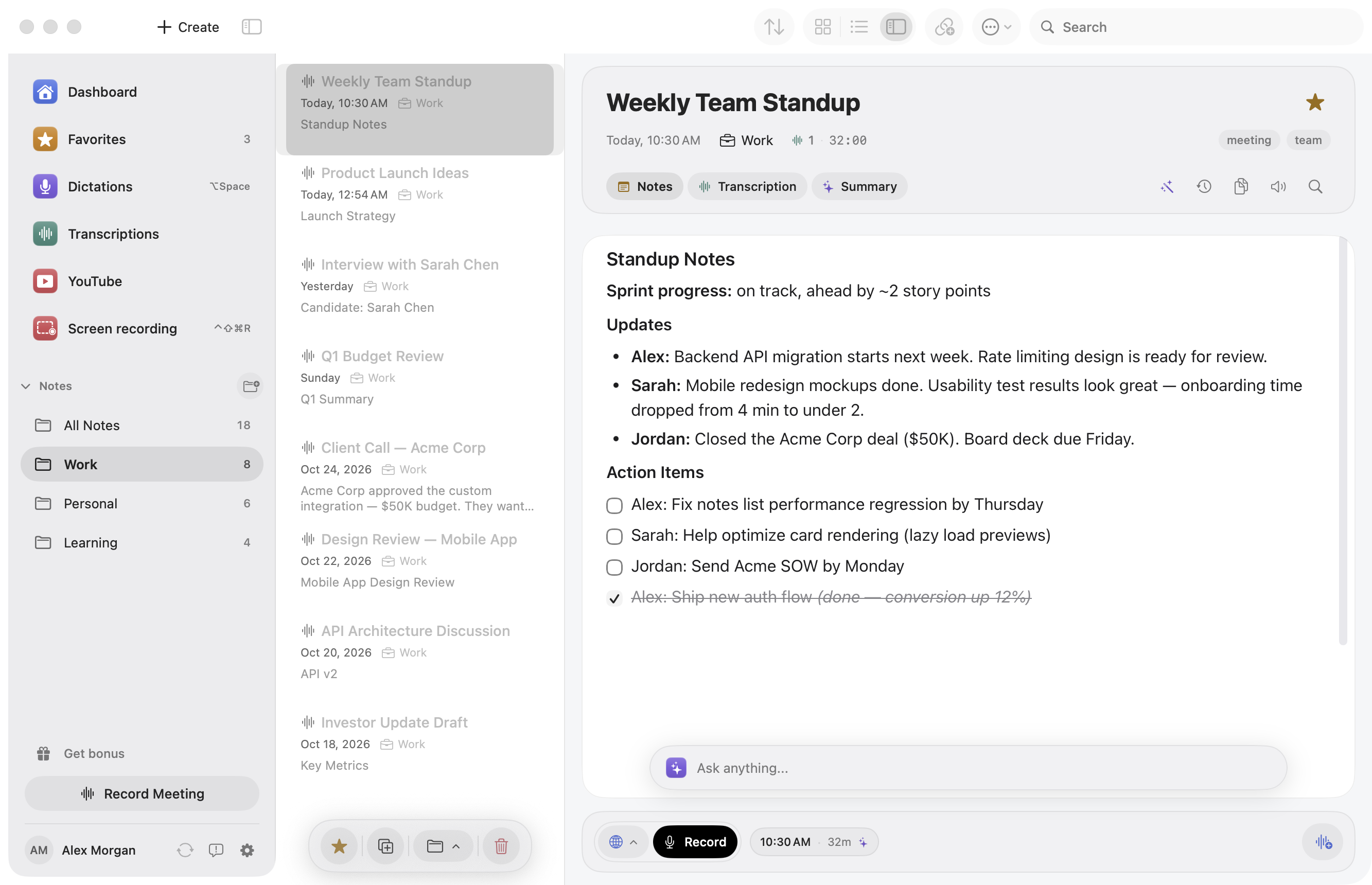
Whynote guides
Start with what you want to do in Whynote. Each section has guides for setting up the app and working with the result.
Bring a saved recording into Whynote and get a transcript. Choose your device to see how to import the file and review the text.
Record a meeting in Whynote and return to the conversation later. Use the transcript to prepare decisions and follow-up actions.
Speak a draft with Whynote on Mac or record a voice note on iPhone. Pick the guide for the way you want to work with the text.
YOUR RECORDINGS AND NOTES TOGETHER
Keep voice notes and transcripts together so you can come back to a thought. When a process is easier to show, record a screen clip to share with your team.
Record a meeting or import audio. Read the transcript, keep your own notes and use Pro to turn the discussion into a summary or follow-up.
Explore meeting notesUse a configurable shortcut to dictate into a suitable Mac text field. Choose local or cloud recognition, then review the result before sending.
Set up dictationCapture a region, trim the beginning and end, remove a middle section and save or copy an MP4 or GIF. Add narration or camera to MP4.
Make a screen clipSCREEN CLIPS, WITHOUT THE DETOUR
A short explanation should stay short. Select a region, capture what matters and review the clip before you share it.
Keep the rest of your desktop out of the clip. Choose MP4 or GIF.
Trim the edges or select a middle section to remove. Fine-tune the time fields; undo a change when needed.
Review the result. Save the file or copy it for an app that accepts file attachments. The original MP4 remains available.
BEYOND THE RECORDING
Check the transcript and add your own notes alongside it. Then use Pro to prepare a summary or ask a question about the material.
Choose a detailed summary, TL;DR, follow-up or action items. Pro features use online processing.
Search, folders, tags and favorites help you return to the right note. Use them to organize recordings instead of hunting through separate files.
Import a YouTube transcript when one is available and work with it in Whynote. This feature requires Pro.
Connect a supported MCP client such as Claude Desktop, Cursor or Codex. Use it to search and work with notes in your local Whynote library.
KNOW WHERE YOUR WORK GOES
Choose speech recognition separately for notes and dictation. Local models need to be downloaded before supported offline use.
START WITH THE APP
Explore the app, then check the current allowance and offer in Settings → Subscription. Free download does not mean unlimited transcription or free access to every feature.
Get the Mac app and explore the workspace. Your account shows the available free usage.
Download for MacPro adds AI summaries, chat and dictation enhancement. Check the app for the available allowance and subscription terms before purchase.
Explore the appPrices, billing periods and renewal terms are shown before payment. You can manage your subscription in the app. Terms · Support
Local speech recognition can work offline after supported models are downloaded. Optional enhancement, summaries, chat, cloud recognition and sync need internet.
Screen recording can include microphone narration and a camera bubble with MP4. GIF has no sound or camera. Meeting recording uses a separate audio workflow.
The shared editor supports trimming, precise time fields, removing a middle section and Undo. Review the result before copying or saving.
Configure the shortcut and recording mode in Settings. Speech recognition and insertion are separate steps; some protected fields may not accept automatic insertion.
This page shows Mac workflows. The iPhone app is available separately on the App Store; features and requirements differ.
WhyNote
Get Whynote to record a meeting or capture a thought as a voice note. Choose the Mac app for your desktop or the iPhone app for notes on the go.
Mac features shown · iPhone app available separately